
git - 1337 edition - II
This is the second part of Git - 1337 edition, if you haven't gone through the first I'll recommend you going through the first part.
Fixing Mistakes
Everyone wants to know how do I fix mistakes? There are a few tools that I use: checkout, reset, revert and clean. After this section you're not gonna have a hard time figuring out which commit do you need for what scenario.
git checkout
It helps you to restore working tree files or switch branches.
What happens when you check out a branch?
- Change HEAD to point to the new branch.
- Copy the latest commit snapshot to the staging area.
- Update the working area with your branch contents.
Checking out a branch is generally a safe operation, nothing bad's going to happen.
What happens when you git checkout -- file?
It replaces the working area copy with the version from the staging area (i.e copy of the latest commit).
This is a destructive operation, it'll overwrite your file for sure, without warning.
What happens when you git checkout <commit> -- file?
- Update the staging area to match the commit
- Update the working area to match the staging area
- Using this command we can restore a deleted file:
git checkout <deleting_commit>^ -- <file-path>
This is a destructive operation too, it'll overwrite your files in staging and working area.
The -- double dashes signify the end of command operation and the beginning of positional parameters. It's to differentiate between a branch and file with the same name.
git reset (Playing with time)
One difference between git checkout and git reset is that checkout will move the HEAD but the branch stays the same, but reset will move the HEAD as well as the branch reference.
git reset --soft HEAD~
# move HEAD to the previous commit, that's it.

git reset --mixed HEAD~
# move HEAD to the previous commit and get a copy of those files to the staging area. (default)

git reset --hard HEAD~
# All of the above and change the working area with the same copy - destructive
If you notice you have a way to change history now. To protect the time continuum, do not ever push history changes to a public or shared repository.
git reset -- <file>: It doesn't move the HEAD pointer but it copies that file from the current commit to the staging area.
git reset <commit> -- <file>: It won't move the HEAD but will copy the file from given commit SHA to the staging area.
Undo a git reset with ORIG_HEAD
git reset ORIG_HEADgit revert (the safe reset)
Git revert creates a new commit, it introduces the opposite changes from the specified commit. The original commit will stay in the repo.
On a serious note, use revert if you're undoing a commit that has already been shared, as revert doesn't change history.
git revert <commit-sha>git clean
Git clean will clear your working area by deleting untracked files.
git clean --dry-run
git clean -d -f
Rebase & Amend
Amend
It's a quick and easy shortcut to make changes to the previous commit.
❯ git add a.txt
❯ git commit -m "add alphabets"
[master 1b6cb34] add alphabets
 1 file changed, 0 insertions(+), 0 deletions(-)
 create mode 100644 a.txt

❯ git add b.txt
❯ git commit --amend
[master 4544171] add alphabets
 Date: Fri May 1 17:07:57 2020 +0530
 2 files changed, 0 insertions(+), 0 deletions(-)
 create mode 100644 a.txt
 create mode 100644 b.txt
Rebase
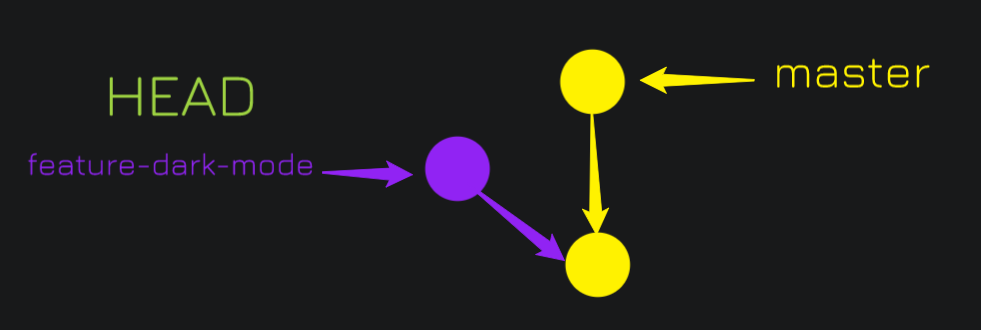
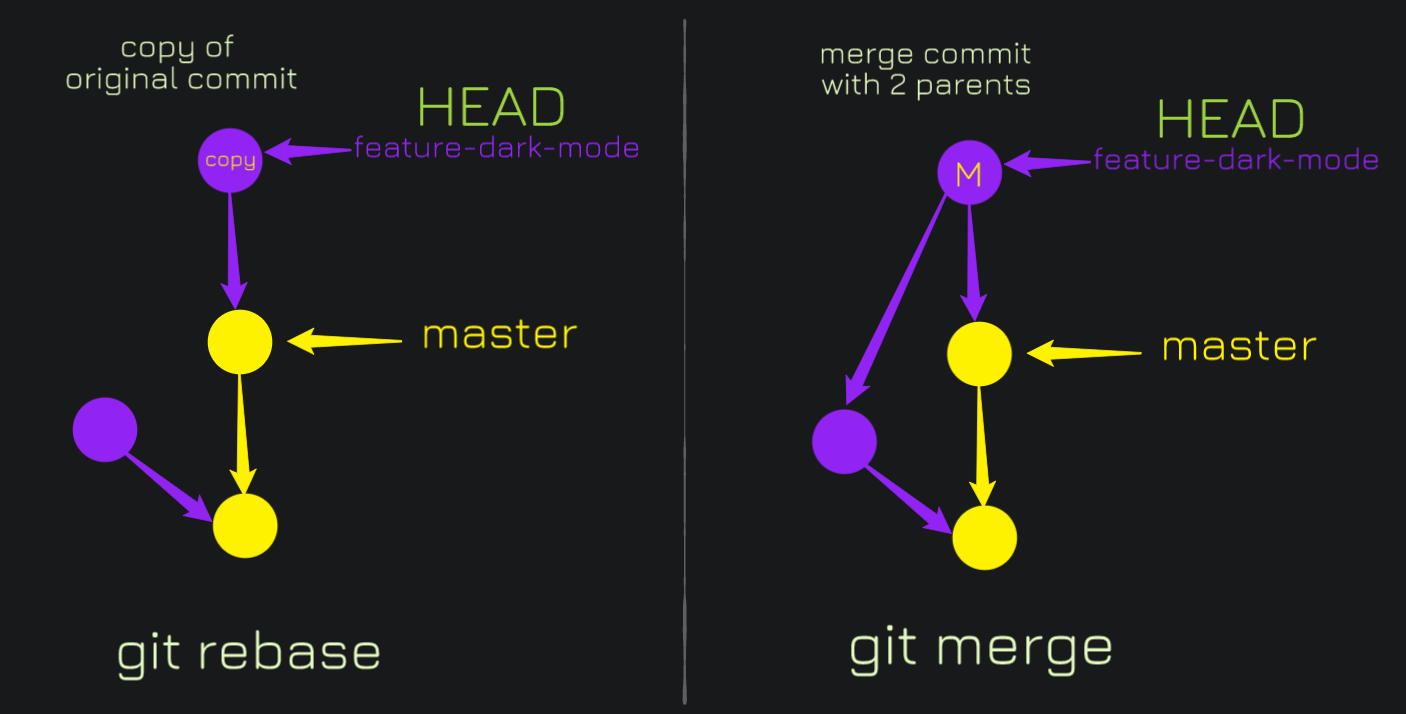
Imagine my feature-dark-mode and master branch have diverged. And we don't want to have a messy merge commit in our history. So what can we do?
We can pull in all the latest changes from master, and apply our commits on top of them by changing the parent commit of our commits. rebase = give a commit a new parent.
git rebase master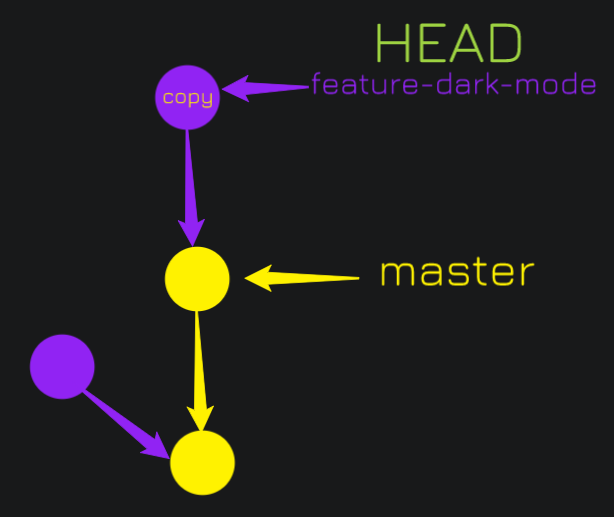
It created a new commit, actually a copy of the commit on the feature-dark-mode branch, and that branch is up to date with the latest commit on master.
Interactive Rebase
git rebase -i <commit_to_fix>^Some of the rebase options:
- pick: keep this commit.
- reword: keep the commit, just change the message.
- edit: keep the commit, but stop to edit more than the message.
- squash: combine this commit with the previous one and stop to edit the message.
- fixup: combine this commit with the previous one and keep the previous commit message.
- exec: run the command on this line after picking the previous commit.
- drop: remove the commit.
Tip: Use rebase to split commits
1. Start an interactive rebase with -i
2. Mark the commit with an edit
3. git reset HEAD^
4. git add
5. git commit
6. repeat (4) & (5) until the working area is clean
7. git rebase --continue
Tip: "Amend" any commit with fixup & autosquash
1. git add new files
2. git commit --fixup <SHA>
3. git rebase -i --autosquash <SHA>^
4. git will generate the right todos for you. Just save and quit.
Rebase ProTip: Before you rebase/fixup/squash/reorder, make a copy of your current branch:
git reset backup_branch --hardRebase Advantages
- You can slice and dice your git history.
- It's easy to fix previous mistakes in code.
- You can keep your git history neat and clean.
Best practices:
- commit often, perfect later, publish once.
- when working locally, commit whenever you make changes.
- before you push work to a shared repo, rebase to clean up the commit history.
- never rewrite public history.
Forks and Remote Repos
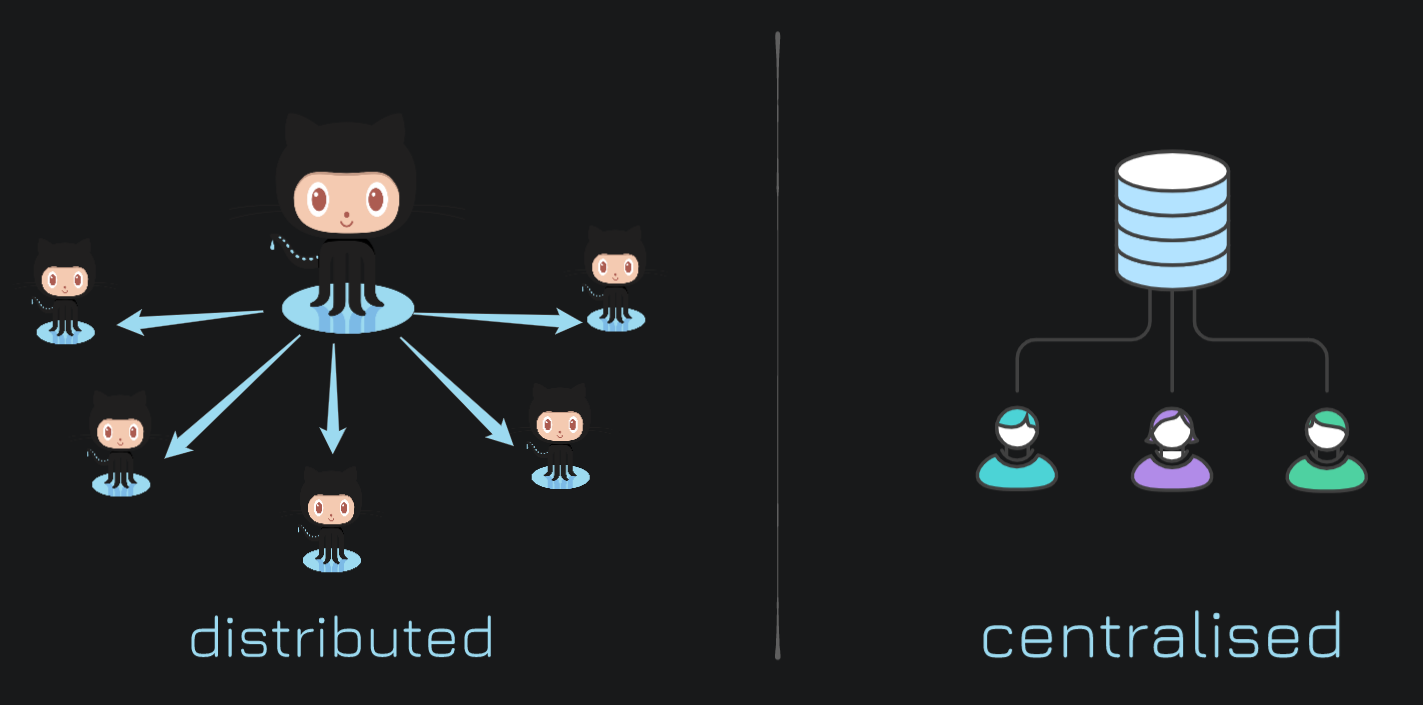
Git doesn't work with one central repository. Because of the efficiencies of how git stores data, we're able to store the whole git repository with all of its histories on our local machines.
Github vs Git
Git:
- Open-source version control software
Github:
- Repository Hosting
- Browse Code
- Issues
- Pull Requests
- Forks
Remotes
A remote is a git repository stored elsewhere - on the web, in GitHub, GitLab, bitbucket, etc. origin is the default name git gives to the server you cloned from.
❯ git remote -v
origin  git@github.com:karngyan/karngyan.github.io.git (fetch)
origin  git@github.com:karngyan/karngyan.github.io.git (push)
Forks, Pull Requests & Upstreams
A fork is a copy of a repository, that's stored in your Github account.
Staying up to date: While you work on your fork, other changes are getting merged into the source repository. To stay up to date, set up an upstream.
❯ git remote add upstream https://github.com/ORIG_OWNER/REPO.gitGithub Workflows
The most common workflow, is the triangular workflow.

Tracking Branches
git checkout -t origin/feature-dark-mode
git push -u origin feature-dark-mode
❯ git branch -vv
feature-dark-mode 874eab1 [origin/feature-dark-mode] add logo
* master a45c454 [origin/master: ahead 4] update bioFetch, Pull, Push
git pull --rebase
git push <tagname>
git push --tags
Contributing to open source - Pull Requests
Before opening a PR:
- Keep commit history clean and neat. Rebase if needed.
- Run project tests on code.
- Pull in upstream changes, preferably via rebase.
- Check for CONTRIBUTING(.md/.txt) in the project root.
After opening a PR:
- Explain your changes thoroughly.
- Link to any open issues that your pull request might fix.
- Check back for comments from the maintainers.
Github API
Github has an incredibly powerful RESTful API. It's currently on version 3 and it allows you to do a lot.
When making requests unauthenticated, it's rate limited to 60 requests per hour. You can generate a personal token or set up OAuth.
Create and Update via the API
It's possible to create and update:
- Issues
- Pull Requests
- New Repositories
- Gists
Danger Zone
Local Destructive Operations
git checkout -- <file>
git reset --hard
git stash --include-untracked
Remote Destructive Operations
If your code is hosted or shared, never run git push -f after rebase, amend, or reset.
Recover Lost Work
- Use ORIG_HEAD
- Check for repo copies: Github, co-worker
- By default, git keeps dangling (unreferenced) commits for about two weeks.
❯ git reflog
a45c454 (HEAD -> master) HEAD@{0}: checkout: moving from master to master
a45c454 (HEAD -> master) HEAD@{1}: commit: update bio
73e12f1 HEAD@{2}: commit: rename copy
...
That's about it. I guess that's more than enough for you to be a GIT Wizard now. By the way, that first PR getting merged at Crio felt awesome. And it was my last day on 30th April 2020 at Crio as an intern and I'd like to dedicate this blog to Sridher Sir, Rohin, Ashwanth, Pratik and everyone at Crio who made every day there, an amazing learning experience.