
git - 1337 edition - I
I started working at Crio about 7 months ago as a Software Engineer Intern and I had zero industry experience with programming. I was confident in my skills but unsure of their effectiveness in a collaboration environment. What if I mess up, what if someone blames me up for something, I had a gazillion thoughts on my mind. And sharpening up my git skills was paramount.
Well, I don't like hovering over a technology just to get things done, especially when I'm in college and I have the time. I decided to get into it and get into it deep.
Before getting into the specifics, I'd like to drill in why it's important that we use the command line and not GUIs, at least don't start with a GUI. If you start out using Git with one of the graphical tools where they let you drag and drop commits and do all sorts of wizardry, you'll never fully understand what's going on under the hood.
To truly get Git, you have to use the tools as they were designed. And to do that, you need to use git on the command line.
Alright! What is Git? We all know that it's a distributed version control system (DVCS). But to understand git, we need to learn how does git store information.
How does Git store information?
Git was initially a toolkit for a version control system rather than a full user-friendly VCS, it has several subcommands that do low-level work. These commands are generally referred to as Git's "plumbing" commands, while the more user-friendly commands are called "porcelain" commands. Get it?
At it's core git is like a hash-table, where the Value is the Data and the Key is the Hash of the Data.

The Key - SHA1
- It's a cryptographic hash function.
- Given a piece of data, it produces a 40-digit hexadecimal number.
- If the given input is the same, the value is always the same.
- Because of this feature, remember identical content is always stored once.
So you look at git log, you see lots of 40 digit hexadecimal, those are called SHA1s.
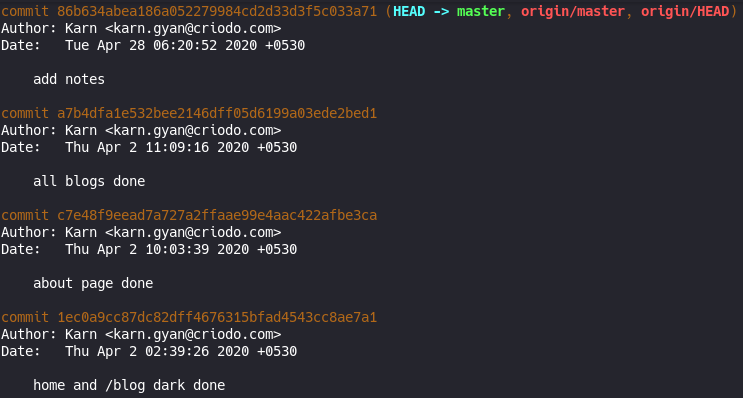
This type of system is also called a Content Addressable Storage (CAS) System.
The Value - BLOB
The most basic git object is called a blob (Binary Large OBject). Git stores the compressed data in a blob, along with the following metadata in the header:
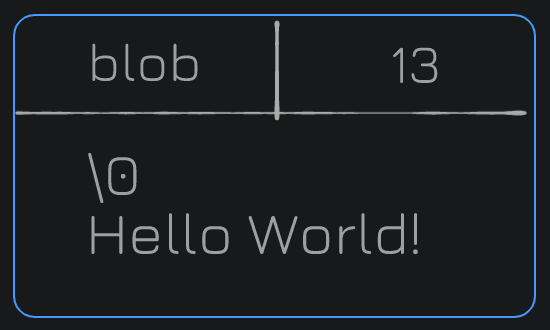
- the identifier blob
- the size of the content
- \0 delimiter - It's the null string terminator in C.
- content
Let's ask git for hash of the content: 'Hello World!'
> echo 'Hello World!' | git hash-object --stdin
980a0d5f19a64b4b30a87d4206aade58726b60e3
How about generating SHA1 of the contents, with metadata:
> echo 'blob 13\0Hello World!' | openssl sha1
(stdin)= 980a0d5f19a64b4b30a87d4206aade58726b60e3
Notice it's a match. So, if you'll run the hash function on the same content twice you'll always get the same result.
Blobs are stored in a directory inside ./git/objects directory. That directory's name starts with the first two char of the hash and then the file inside is the rest of the characters.
We need something else
The blob is missing some information:
- filenames
- directory structure
Git stores this information in a tree. The tree contains:
- pointers using SHA1 to blobs and other trees
- metadata: type of the pointer (tree or blob), filename or directory name, mode (executable, symbolic links, etc.)
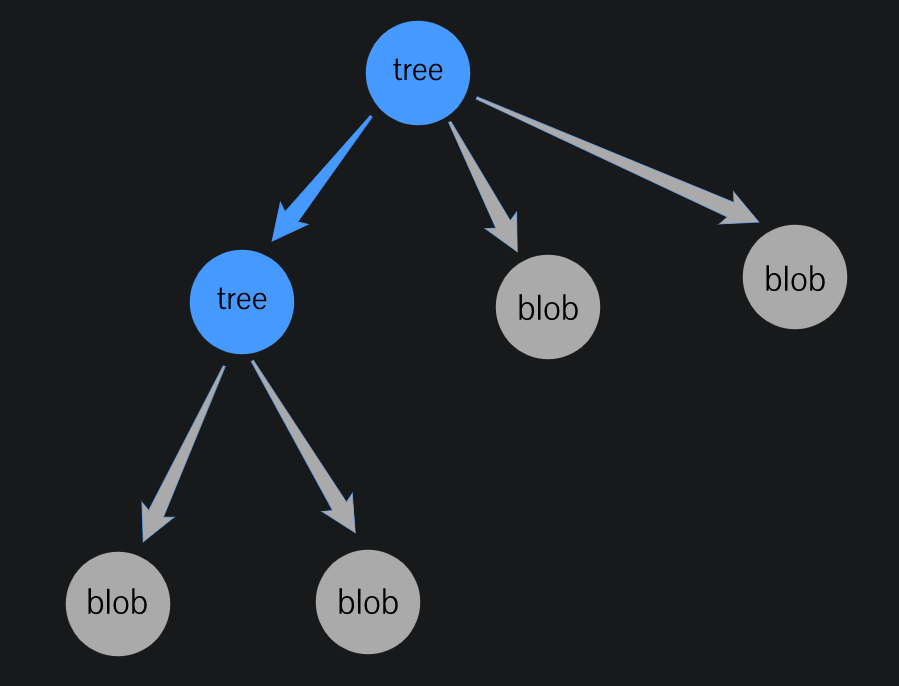
The Tree
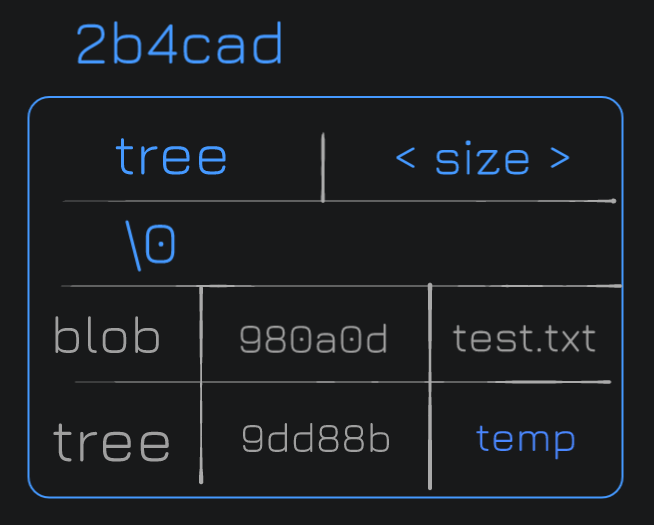
.
├── temp
│   └── test-copy.txt
└── test.txt
In the previous example, the blob points to test.txt and the tree points to the temp directory.
Have you ever tried to add an empty directory to git?
Yeah! so git doesn't store empty directories. The issue is not with empty trees, those just work fine, it's a limitation in the staging area. It only keeps track of files and not directories.
By the way have you seen people keep .gitkeep files inside directories on GitHub? They use it to make git keep track of those directories.
Identical content is only stored once
The first blob points to test.txt. And we have another tree that points to temp (tree), and in temp, we have another file test-copy.txt (whose contents are the same as of test.txt), which is a blob with the same SHA1, as the content is same.
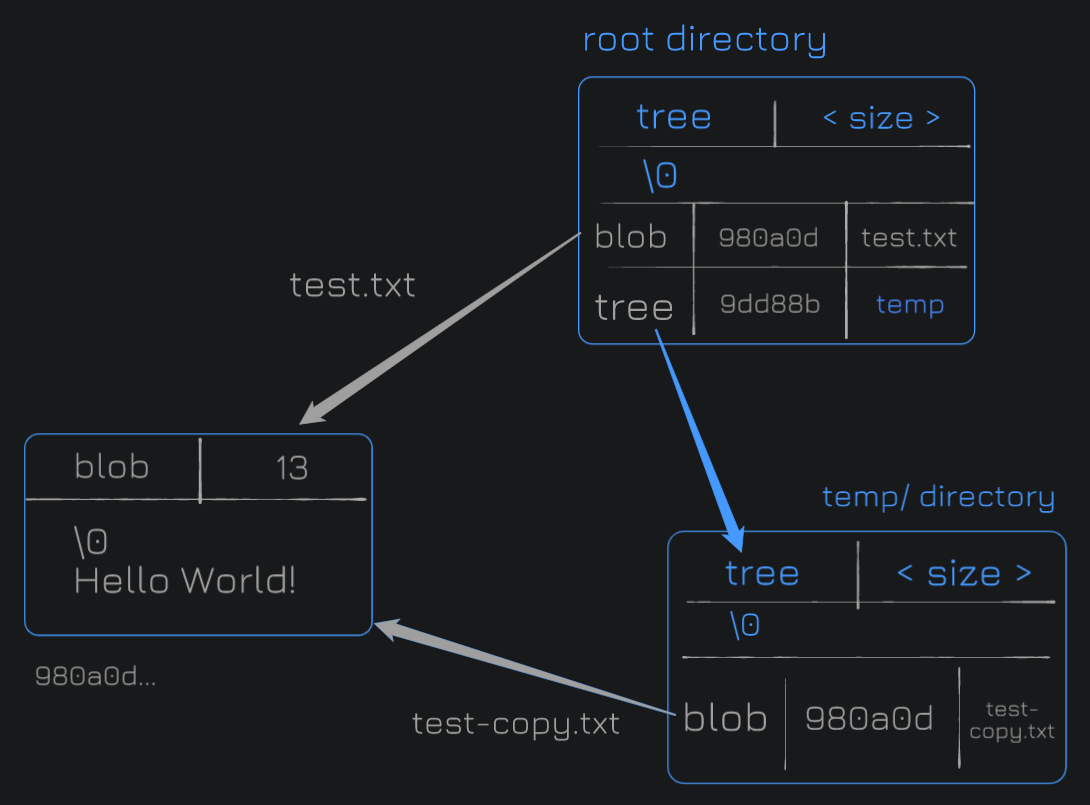
And this is one of the most critical ideas about git. This is how git saves a ton of space, on your hard drive when storing full repositories. And this is why switching branches is so fast as well.
More Optimizations
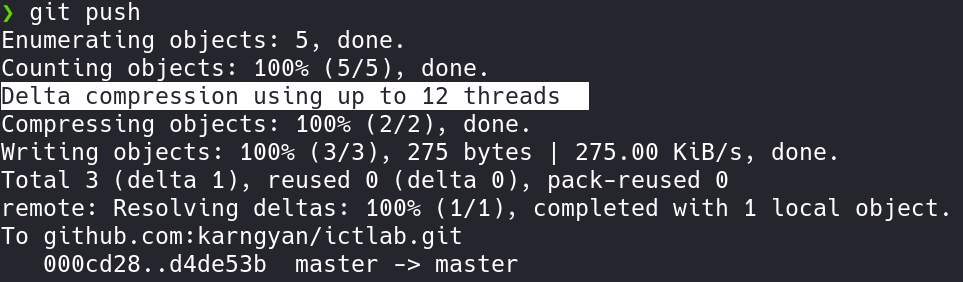
We know that as files change, their contents remain mostly similar. Git optimizes for this by compressing these files together, into a Packfile. The Packfile stores the object, and deltas: the differences between one version of the file and the next.
Git Commits
Commit Object: A commit points to a tree and contains metadata:
- author and committer
- date
- message
- parent commit (one or more): we might have more parent commits, in case of a merge.
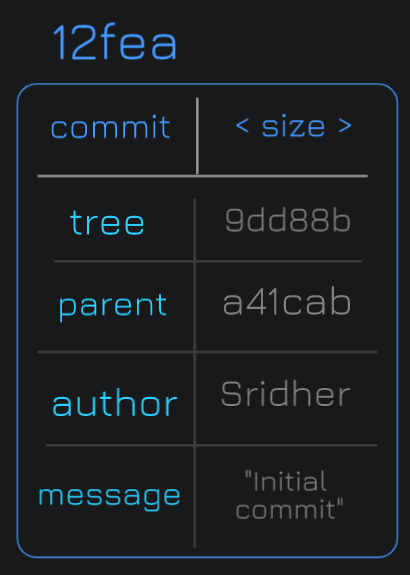
These commits points to trees. And that tree points to other trees and blobs and so on.

Commits under the hood
❯ git cat-file -t 7b01c
commit

❯ git cat-file -p 7b01c
tree 441b084f81a05f4a29493bf984ba801e7f7d93ca
parent d4a589d93e27a49ecdb10a62ff3ffbb8981810a8
author Karn <karn.gyan@criodo.com> 1588134949 +0530
committer Karn <karn.gyan@criodo.com> 1588134949 +0530

temp dir
You can't change any of the other data in git without changing the IDs of everything after it. And that's a great security feature.
References
They're just pointers to commits.
- Tags
- Branches
- HEAD - pointer to the current commit, it's a special reference.
- When you checkout a branch, head also points to the current branch.
Why is changing branches lightning fast in Git?
All it's doing is changing pointers.
Under the hood
❯ tree .git
.git
├── HEAD
└── refs
    ├── heads
    │   ├── feature-dark-mode
    │   └── master
    ├── remotes
    │   └── origin
    │       ├── feature-dark-mode
    │       ├── HEAD
    │       └── master
    └── tags
❯ git log --oneline
a45c454 (HEAD -> master) update bio
...
❯ cat .git/refs/heads/master
a45c4545fa13f574cfbc9f650ebb3939580aab3e❯ cat .git/HEAD
ref: refs/heads/masterNow if you cat .git/HEAD, you'll see that HEAD our current branch pointer is also pointing to master and master is pointing to latest commit. There are cases when HEAD points to a commit directly instead of a branch - we'll talk about that later.
Git Areas and Stashing
Let's talk about the three areas in Git where your code lives:
- Working Area: Files that ain't in your staging area and are also not handled by git. These are called untracked files.
- Staging Area: Also called the cache or the index. These represent what files are going to be part of the next commit.
- Repository: Files that git knows about and it contains all your commits.
Closer Look: Staging Area
Tip: a clean staging area isn't empty.
Staging area consists of the exact copy of your latest commit. You can use the following plumbing command to see what's in your staging area.
❯ git ls-files -s
100644 455d1e9fddf196ddf1b7109c280bfee188a73b1a 0       .editorconfig
100644 d0b459c6c00d0882d4b3b584cbd29572783ddca9 0       .gitignore
...
git add- Add file to next commitgit rm- Remove file from next commitgit mv- Rename file in next commit
git add -p
I use it a lot in my workplace, and it's my absolute favorite. It's especially useful if you've done too much work for one commit. It allows you to stage commits in hunks interactively.
Tip: Remember to use ? for help.
Git Stash
The stash is safe from destructive operations and this is where we save un-committed work.
git stash
git stash --include-untracked
git stash --all

git stash list
git stash show stash@{0}
git stash apply
git stash apply stash@{0}
git stash drop
Advanced Stashing Operations:
git stash save "WIP: making progress on git blog"
git stash branch <optional branch name>
git checkout <stash name> -- <filename>

git stash pop
git stash drop stash@{n}
git stash clear
Git References
What's a branch?
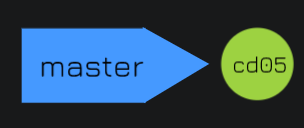
A branch is just a pointer to a particular commit. The pointer of the current branch changes as new commits is made.
What's a HEAD?
Head is how git knows what branch you're currently on, and what the next parent will be. It's a pointer that usually points at the name of the current branch.

HEAD moves when you make a commit in the currently active branch and when you checkout a new branch.
Tags & Annotated Tags
Lightweight Tags
❯ git tag my-first-tag
Annotated Tags: git tag -a
They also point to commits but store additional information - author, message, date.
❯ git tag -a v1.0 -m "Version 1.0 of my blog"
❯ git tag
my-first-tag
v1.0

❯ git show v1.0
tag v1.0
Tagger: Karn <karn.gyan@criodo.com>
Date:   Thu Apr 30 09:42:21 2020 +0530

Version 1.0 of my blog
git show-ref --tags
git tag --points-at <commit>
git show <tag-name>Head-Less / Detached Head
Sometimes you want to checkout a specific commit (or tag) instead of a branch, git will simply move the HEAD pointer to that commit. This state is a detached state.
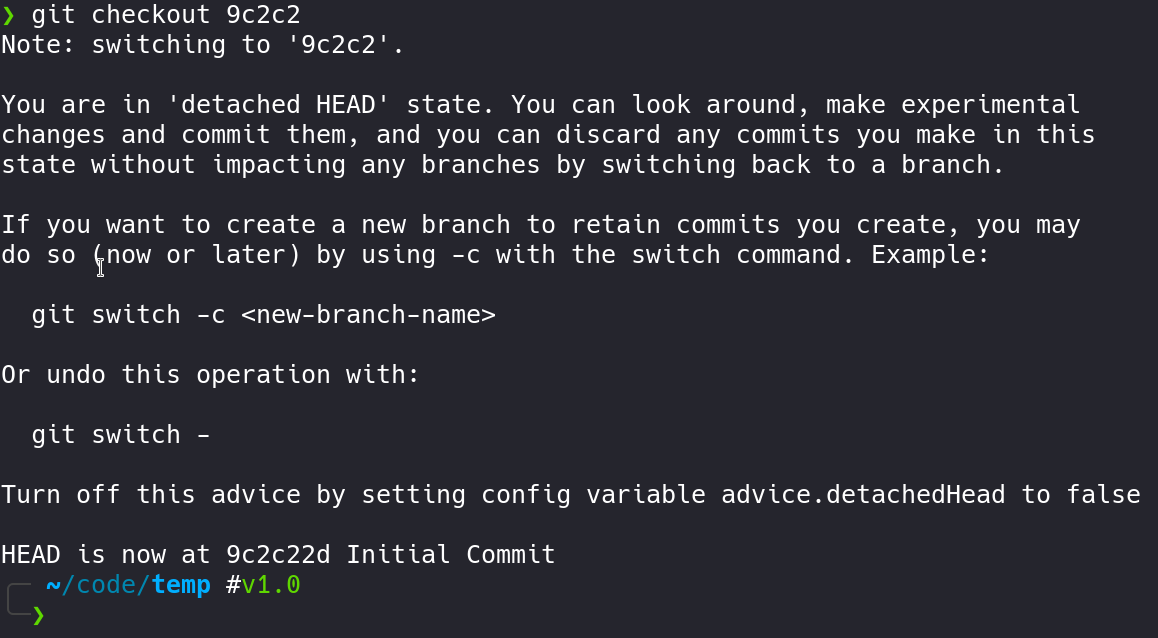
Git tells you that you're in a detached HEAD state and any commits you make here and do not do something about it (i.e. create a new branch out of it) consider them lost.
There are a few things we can do to save our work in a detached state:
- Create a new branch that points to the last commit you made in a detached state.
git branch <new-branch-name> <commit>
- Because other commits point to their parents, if you just point it to the last commit, history is preserved automatically.

These commits are actually called dangling commits. If you care about them, create branch out of it, else forget about it. Eventually, the garbage collector will clean them up.
Merging
Merge Commits
Merge commits are just commits, but they happen to have more than one parent. Fast-forwarding happens when there is a clear path between the tip of the current branch to the tip of the target branch.
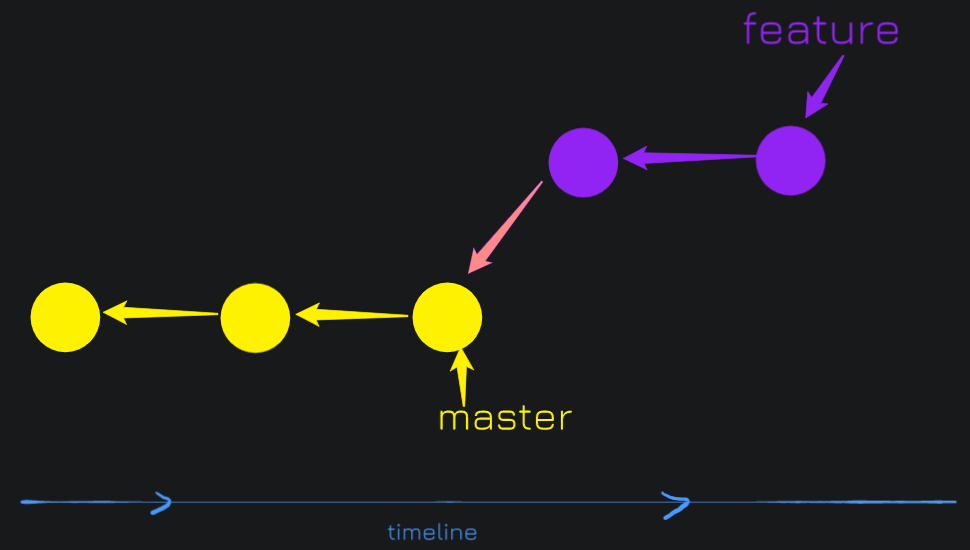
During a fast forward commit, we add the new commits on top of the master branch and we just move the master pointer.
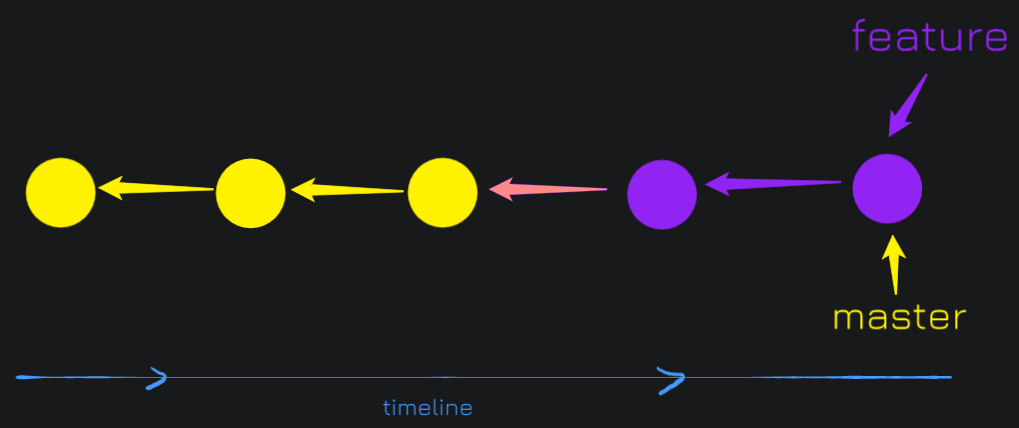
The problem with fast-forward is, we can lose track of a feature that was merged back into master. So in order to avoid this, use git merge --no-ff to force a merge commit even when one isn't necessary.

Merge Conflicts
When you attempt to merge, but your files have diverged. Git creates a state called merge conflict.
Let me introduce you to Git ReReRe - Reuse Recorded Resolution. It saves how you resolved a conflict, and next conflict it's gonna use the same resolution.
git config rerere.enabled trueHistory and Diffs
First of all, stop writing bad commit messages. For a project where you're collaborating with a bunch of people, just don't write bad messages like "More Code" or "Here have code".
A good commit message:
- Write it in the future tense - use "fix" instead of "fixed".
- Write a short subject, followed by a blank line and lastly a description.
- The description should be small, mention side effects and current scenarios.
- A good commit shouldn't leave your code in a broken state.
git log
git log --since="yesterday"
git log --since="2 weeks ago"
git log --name-status --follow -- <file>
git log --grep=mail --author=karn --since=2.weeks
git log --diff-filter=R --stat
Referencing commits
^or^n(hat) - no args means ^1, i.e. the first parent commit~or~n(tilde) - no args means ~1, i.e first commit back, following 1st parent
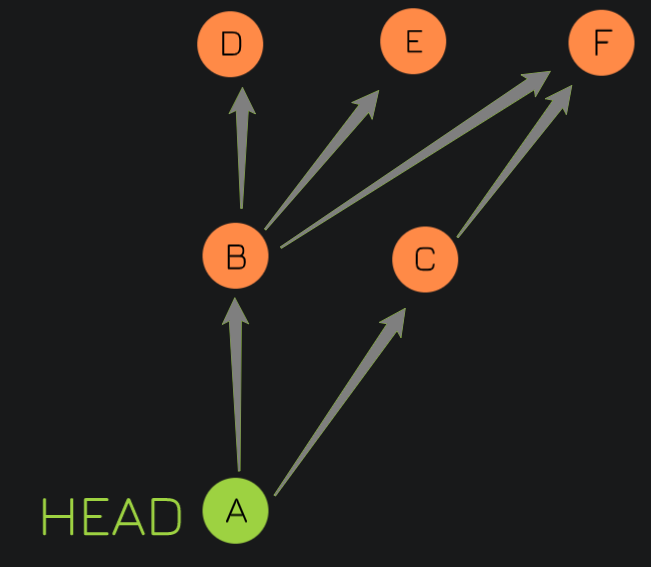
Both commit nodes B and C are parents of commit node A.
- A = A^0
- B = A^ = A^1 = A~1
- C = A^2
- D = A^^ = A^1^1 = A~2
- E = B^2 = A^^2
- F = B^3 = A^^3 = A^2^1
git show
git show <commit>
git show <commit> --stat
git show <commit>:<file>
git diff
git diff
git diff --staged
To look at the branches merged into master:
git branch --merged masterTo look at the branches not merged into master:
git branch --no-merged masterThat's about it for the part one, you can continue on to the next part.